Bootstrap4 按钮组Bootstrap4 信息提示框
Bootstrap4 按钮
按钮是网站和应用程序的组成部分。它们用于各种目的,例如提交或重置HTML表单,执行交互操作,例如单击按钮即可在网页上显示或隐藏某些内容,将用户重定向到另一个页面,等等。Bootstrap提供了一种快速简便的方法来创建和自定义按钮。
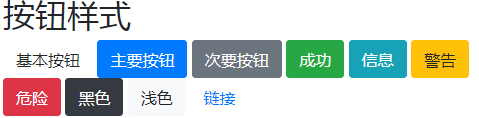
Bootstrap 4 提供了不同样式的按钮。
<!DOCTYPE html>
<html>
<head>
  <title>Bootstrap 示例</title>
  <meta charset="utf-8">
  <meta name="viewport" content="width=device-width, initial-scale=1">
  <link rel="stylesheet" href="https://cdn.staticfile.org/twitter-bootstrap/4.3.1/css/bootstrap.min.css">
  <script src="https://cdn.staticfile.org/jquery/3.2.1/jquery.min.js"></script>
  <script src="https://cdn.staticfile.org/popper.js/1.15.0/umd/popper.min.js"></script>
  <script src="https://cdn.staticfile.org/twitter-bootstrap/4.3.1/js/bootstrap.min.js"></script>
</head>
<body>
<div class="container">
  <h2>按钮样式</h2>
  <button type="button" class="btn">基本按钮</button>
  <button type="button" class="btn btn-primary">主要按钮</button>
  <button type="button" class="btn btn-secondary">次要按钮</button>
  <button type="button" class="btn btn-success">成功</button>
  <button type="button" class="btn btn-info">信息</button>
  <button type="button" class="btn btn-warning">警告</button>
  <button type="button" class="btn btn-danger">危险</button>
  <button type="button" class="btn btn-dark">黑色</button>
  <button type="button" class="btn btn-light">浅色</button>
  <button type="button" class="btn btn-link">链接</button>
</div>
</body>
</html>
测试看看 ‹/›
按钮类可用于 <a>, <button>, 或 <input> 元素上:
<!DOCTYPE html>
<html>
<head>
  <title>Bootstrap 示例</title>
  <meta charset="utf-8">
  <meta name="viewport" content="width=device-width, initial-scale=1">
  <link rel="stylesheet" href="https://cdn.staticfile.org/twitter-bootstrap/4.3.1/css/bootstrap.min.css">
  <script src="https://cdn.staticfile.org/jquery/3.2.1/jquery.min.js"></script>
  <script src="https://cdn.staticfile.org/popper.js/1.15.0/umd/popper.min.js"></script>
  <script src="https://cdn.staticfile.org/twitter-bootstrap/4.3.1/js/bootstrap.min.js"></script>
</head>
<body>
<div class="container">
  <h2>按钮元素</h2>
  <a href="#" class="btn btn-info" role="button">链接按钮</a>
  <button type="button" class="btn btn-info">按钮</button>
  <input type="button" class="btn btn-info" value="输入框按钮">
  <input type="submit" class="btn btn-info" value="提交按钮">
</div>
</body>
</html>
测试看看 ‹/›
按钮设置边框
<!DOCTYPE html>
<html>
<head>
  <title>Bootstrap 示例</title>
  <meta charset="utf-8">
  <meta name="viewport" content="width=device-width, initial-scale=1">
  <link rel="stylesheet" href="https://cdn.staticfile.org/twitter-bootstrap/4.3.1/css/bootstrap.min.css">
  <script src="https://cdn.staticfile.org/jquery/3.2.1/jquery.min.js"></script>
  <script src="https://cdn.staticfile.org/popper.js/1.15.0/umd/popper.min.js"></script>
  <script src="https://cdn.staticfile.org/twitter-bootstrap/4.3.1/js/bootstrap.min.js"></script>
</head>
<body>
<div class="container">
  <h2>按钮设置边框</h2>
  <button type="button" class="btn btn-outline-primary">主要按钮</button>
  <button type="button" class="btn btn-outline-secondary">次要按钮</button>
  <button type="button" class="btn btn-outline-success">成功</button>
  <button type="button" class="btn btn-outline-info">信息</button>
  <button type="button" class="btn btn-outline-warning">警告</button>
  <button type="button" class="btn btn-outline-danger">危险</button>
  <button type="button" class="btn btn-outline-dark">黑色</button>
  <button type="button" class="btn btn-outline-light text-dark">浅色</button>
</div>
</body>
</html>
测试看看 ‹/›
不同大小的按钮
Bootstrap 4 可以设置按钮的大小:
<!DOCTYPE html>
<html>
<head>
  <title>Bootstrap 示例</title>
  <meta charset="utf-8">
  <meta name="viewport" content="width=device-width, initial-scale=1">
  <link rel="stylesheet" href="https://cdn.staticfile.org/twitter-bootstrap/4.3.1/css/bootstrap.min.css">
  <script src="https://cdn.staticfile.org/jquery/3.2.1/jquery.min.js"></script>
  <script src="https://cdn.staticfile.org/popper.js/1.15.0/umd/popper.min.js"></script>
  <script src="https://cdn.staticfile.org/twitter-bootstrap/4.3.1/js/bootstrap.min.js"></script>
</head>
<body>
<div class="container">
  <h2>不同大小的按钮</h2>
  <button type="button" class="btn btn-primary btn-lg">大号按钮</button>
  <button type="button" class="btn btn-primary">默认按钮</button>
  <button type="button" class="btn btn-primary btn-sm">小号按钮</button>
</div>
</body>
</html>
测试看看 ‹/›
块级按钮
通过添加 .btn-block 类可以设置块级按钮:
<!DOCTYPE html>
<html>
<head>
  <title>Bootstrap 示例</title>
  <meta charset="utf-8">
  <meta name="viewport" content="width=device-width, initial-scale=1">
  <link rel="stylesheet" href="https://cdn.staticfile.org/twitter-bootstrap/4.3.1/css/bootstrap.min.css">
  <script src="https://cdn.staticfile.org/jquery/3.2.1/jquery.min.js"></script>
  <script src="https://cdn.staticfile.org/popper.js/1.15.0/umd/popper.min.js"></script>
  <script src="https://cdn.staticfile.org/twitter-bootstrap/4.3.1/js/bootstrap.min.js"></script>
</head>
<body>
<div class="container">
  <h2>块级按钮</h2>
  <button type="button" class="btn btn-primary btn-block">按钮 1</button>
  <button type="button" class="btn btn-default btn-block">按钮 2</button>
  <h2>大的块级按钮</h2>
  <button type="button" class="btn btn-primary btn-lg btn-block">按钮 1</button>
  <button type="button" class="btn btn-default btn-lg btn-block">按钮 2</button>
  <h2>小的块级按钮</h2>
  <button type="button" class="btn btn-primary btn-sm btn-block">按钮 1</button>
  <button type="button" class="btn btn-default btn-sm btn-block">按钮 2</button>
</div>
</body>
</html>
测试看看 ‹/›
激活和禁用的按钮
按钮可设置为激活或者禁止点击的状态。
.active 类可以设置按钮是可用的, disabled 属性可以设置按钮是不可点击的。 注意 <a> 元素不支持 disabled 属性,你可以通过添加 .disabled 类来禁止链接的点击。
<!DOCTYPE html>
<html>
<head>
  <title>Bootstrap 示例</title>
  <meta charset="utf-8">
  <meta name="viewport" content="width=device-width, initial-scale=1">
  <link rel="stylesheet" href="https://cdn.staticfile.org/twitter-bootstrap/4.3.1/css/bootstrap.min.css">
  <script src="https://cdn.staticfile.org/jquery/3.2.1/jquery.min.js"></script>
  <script src="https://cdn.staticfile.org/popper.js/1.15.0/umd/popper.min.js"></script>
  <script src="https://cdn.staticfile.org/twitter-bootstrap/4.3.1/js/bootstrap.min.js"></script>
</head>
<body>
<div class="container">
  <h2>按钮状态</h2>
  <button type="button" class="btn btn-primary">主要按钮</button>
  <button type="button" class="btn btn-primary active">点击后的按钮</button>
  <button type="button" class="btn btn-primary" disabled>禁止点击的按钮</button>
  <a href="#" class="btn btn-primary disabled">禁止点击的链接</a>
</div>
</body>
</html>
测试看看 ‹/›
Bootstrap4 按钮组Bootstrap4 信息提示框